

Common Scenarios - Team Calendar
We want to setup a Reminder web part to sent out email alerts to remind everyone of important events like timesheets, expenses claims, quarterly sales reports and other important tasks.
As many of these tasks occur on a frequent schedule (timesheets every week, expense at the end of the month etc) so unlike the Tasks due and Overdue example we are going to use a Calendar type list to sore these events then we will be able to make use of SharePoint's recurring events feature.
Also - some events (like timesheets) will apply to everyone in the team while other events may only apply to one or two people.
We have produced a demo introducing Reminders support for Recurring Events that demonstrates this scenario - or you can see step by step instructions below.

 |
First create a new calendar list in your
teams site Select Site Actions > Create > Calendar Enter "Team Calendar" or something description for the name |
|
|---|---|---|
|
|
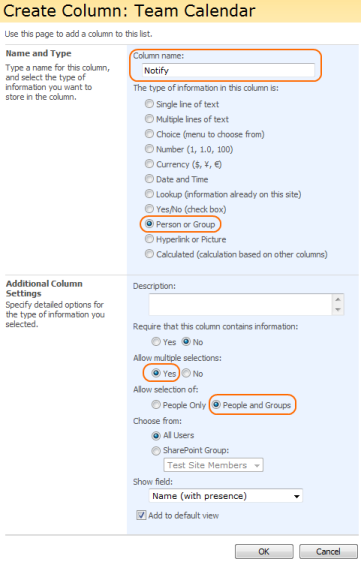
Add a new column to the calendar Select Settings > Create Column Call this column "Notify" Set the type to be Person or Group Under Additional Column Settings set Allow Multiple selections and also Allow selection of People and Groups |
|
|
|
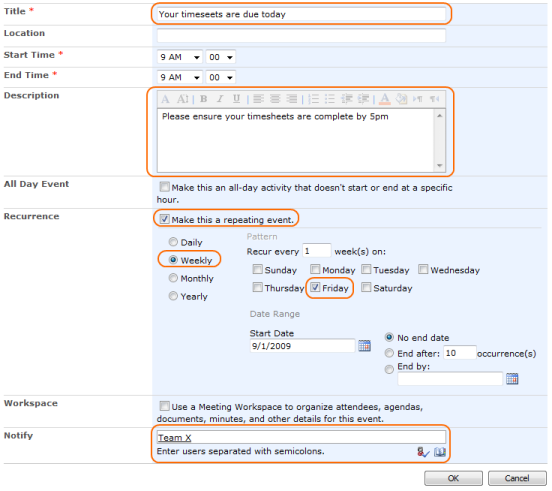
Add an example event - Your timesheets are due today We are going to send the Title as the subject of the email, so set it to something like "Your timesheets are due today" We are going to send the Description in the body of the message so you can add more information here. Set the start time to 9am. The end time is not really important for this demo, so lets leave it as 9am too. Select Make this a recurring event and Weekly Choose to repeat on a Friday Set the Notify column to our teams SharePoint Group or enter the people individually (If you don't have a suitable group - see your site administrator) |
|
|
|
Add another event - Complete service level report Similar to the last event, but this time we are going to repeat Monthly on the First weekday And we are only going to add one individual to the Notify column rather than the whole team. Note - you don't have to use a recurring event, it could be an one off event that you would like to remind the whole team of like a presentation. |
|
|
|
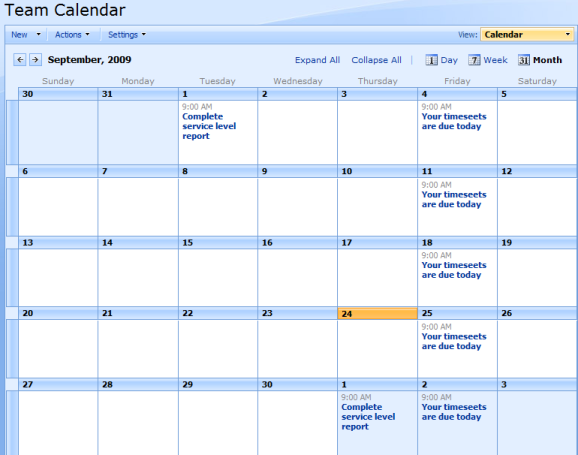
We have now got some events in our calendar Service level report - first working day of each month Timesheets - every Friday Remember that we can edit individual instances of these events, for example if there is a public holiday one Friday we may want to move that weeks timesheet reminder to the Thursday. The next step is to setup a Reminder web part to watch this calendar and send out email reminder alerts. |
|
|
|
||
|
|
Create a new page for the Reminder Web Parts Tip - its a good idea to group Reminder Web Parts together on web part pages that are out of the way of normal users. Remember you can also add some notes onto the page using the "Content Editor Web Part". |
 |
|
|
Add a Reminder Web parts to the page |
|
|
|
Select the web part edit menu and then Modify Shared Web Part | |
|
Configure the web part Under Watch List select Team Calendar Click Expand Recurrences Under Email To select the Notify column In Subject enter [Title] Tip - This puts the contents of the Title field into the subject line, more details on this mail merge feature can be found here In Message enter [Description] |
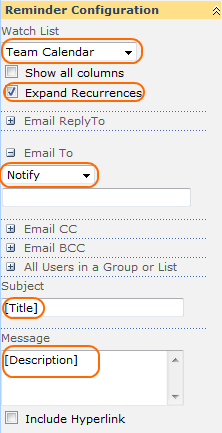
|
|
Configure when the alerts should be sent Under Send When set the Column to Start Time Set Due Today Leave Send Email as Once Set Check List to 8am Daily Tip - we could send |
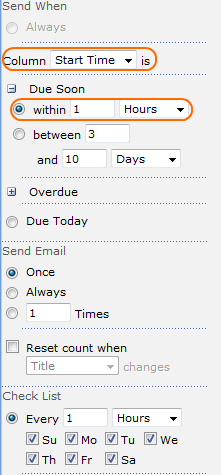
|
|
Now we will see email alerts go to - Nancy on the first working day of the month for her report - The whole team every Friday morning reminding them to finish their timesheets You have many more options when setting up Reminder, for example - Add a Notify CC column to ensure emails are CC'd to the right people - Perhaps you only want to notify people of certain kinds of events - set a view to filter out those events and set Reminder to watch that view. - You could setup Reminder to run first thing Monday morning reminding people of all events that are due that week - If you wanted the alert emails to be sent out closer to the events you could set the Check Every time to be 5 minutes and Due In to 10 minutes (this gives a little room if the server is busy and the list can't be checked exactly every 5 minutes. |
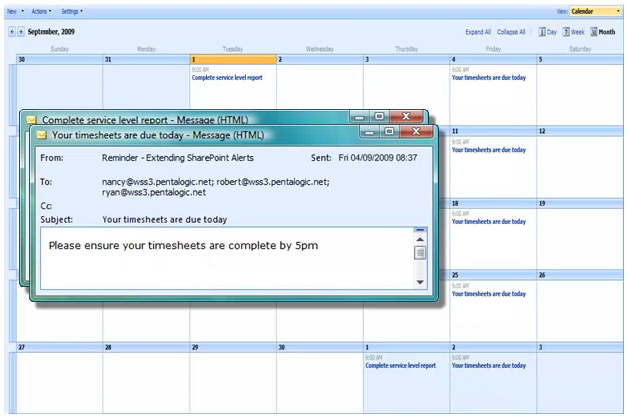
|