

Common Scenarios - Equipment Calibration
In this scenarios we are going to use SharePoint to control the calibration of various items of equipment. Our equipment needs recalibrating every 90 days, but you can easily adapt this to other scenarios as described below.
We want the application to send a email 10 days before an item of equipment is due to be recalibrated and another one should be sent if a recalibration date is missed so the equipment is immediately removed from service. For compliance reasons we need to keep a history of all equipment calibrations.
In many ways this is similar to the Tasks Due/Overdue example.
 |
First we will setup our Recalibration List. As we want to keep a history of all calibrations we will start with an Issue List (which keeps a history automatically) and modify it for our requirements. Select Create then choose Issues List. Name the list "Equipment Recalibration"
|
|
|
|
Select Modify settings and Columns Select the Priority column and then Delete as we will no longer need this column.
|
|
|
|
Select the Due Date column and rename it
to be "Last Calibration Date" Also check Yes - this column requires information
|
|
|
|
Select Add a new column, call it "Next
Recalibration Date", select the Calculated
type. Set the formula to and set the formula to "[Last Recalibration Date]+90" and the data type to "Date Time"
Tip - you might have equipment that needs recalibrating on different schedules you could do this in two ways. 1) Set the "Next Calibration Date" to a Date and Time field and enter the date manually. 2) Have a column called "Recalibration Days" and set the formula to "[Last Recalibration Date] + [Recalibration Days]" You can see some examples of how you can use formulas in views on this page.
|
|
|
|
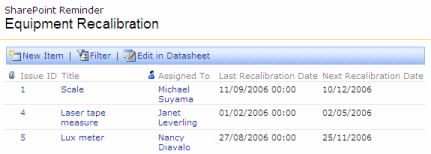
Our list now looks something like this
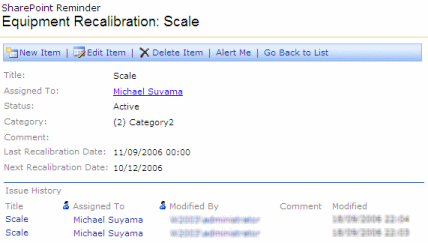
In our example we have 3 items. If we click on one of the items you can see a history of all changes that have been made to this record.
|
|
|
|
Now we will setup the first Reminder Web Part
|
|
|
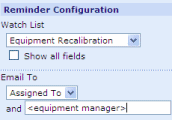
Set Watch List to "Equipment Recalibration" Set Send To to "Assigned To" (the person who looks after the equipment. Enter the email address of the equipment manager (or whoever needs to be CC'd) on this email in the CC free text box |
|
|
|
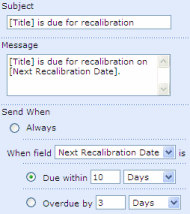
Enter a suitable Subject and Message. Tip - Use the format [Field Name] to insert the data from a particular field into the subject or message, i.e. "[Title] is due for recalibration on [Next Recalibration Date]" Set Send When field "Next Recalibration Date" is Due within "10 Days" (we want to give people 10 days notice) |
|
|
|
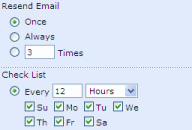
Set Resend Email to Once Set Check List to "Every 10 Hours"
|
|
|
|
|
Setup a second Reminder Web Part in a similar way but with Send When field "Next Recalibration Date" is Overdue by "1 Day" (we want the equipment removed from service ASAP)
|
|
|
|
In our example we have the following items in our list (using the date notation DD/MM/YYYY)
If the current date is the 1st December 2006. SharePoint Reminder will send the following emails.
|
|