CAS and 3rd Party / Internal Solutions
These instructions are only for older versions before v2.8 - please see this page for Installation for version 2.8+
When installing a SharePoint Solution or Web Part you have the choice of
Global Assembly Cache (GAC) or BIN installation.
When installed into the GAC the assembly (web part) is given
'Full Trust' and the software runs with unrestricted access.
If installed to the Bin directory the operations that an assembly can
perform are strictly limited using
Code Access Security (CAS) configuration. This is called 'Partial
Trust'.
A security feature of the .NET framework stops an assembly that is given Partial Trust (the
caller) using another assembly that has Full Trust (the callee)
unless the called assembly has been marked with the
AllowPartiallyTrustedCallers attribute. In effect the assembly is
declaring that "Its ok for other programs to use me, I will make sure
they can't do anything bad".
On WSSv3 or MOSS 2007 SharePoint Planner follows
Microsoft's recommended best practices and installs the web part to the Bin
directory and sets the appropriate minimum CAS settings during
installation as this method of deployment is much more secure.
However, many 3rd party and internally developed solutions don't use
Bin/CAS installation and instead deploy to the GAC with full trust and
without the
AllowPartiallyTrustedCallers attribute
What this means
is that SharePoint Planner will not be able to use any Lists or Fields created
using such solution installed into the GAC and these Lists and Fields will
not appear in the
Source and
Category/Label
drop down lists.
To solve this you need to either
- Ask your SharePoint administrator to deploy the called solution
to the Bin directory
- Ask the called solution developer to add the
AllowPartiallyTrustedCallers attribute
- Deploy Planner to the GAC using the instructions below
GAC Installation
-
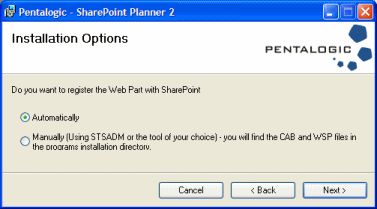
To install the Web Part on to SharePoint manually
first install using the Manual option to obtain the
Web Part CAB and WSP files.
|
-
The Web Part CAB and WSP files are then available in
the Web Part Files folder in the programs
installation directory
|
The web part should be installed using the
Pentalogic.SharePointPlanner-GAC.WSP
file.
This example shows how to add the solution file and
then deploy it to all sites on a local server using
STSADM :-
SET PATH=%PATH%;"c:\Program Files\Common Files\Microsoft Shared\web server extensions\14\BIN\"
CD "C:\Program Files\Pentalogic\SharePoint Planner 2\Web Part Files"
STSADM.EXE -o AddSolution -filename Pentalogic.SharePointPlanner2-GAC.wsp
STSADM.EXE -o DeploySolution -name Pentalogic.SharePointPlanner2-GAC.wsp -allcontenturls -immediate -force -allowGacDeployment
STSADM.EXE -o execadmsvcjobs
This example shows how to retract and then delete the
solution file :-
SET PATH=%PATH%;"c:\Program Files\Common Files\Microsoft Shared\web server extensions\14\BIN\"
    STSADM.EXE -o RetractSolution -name
						Pentalogic.SharePointPlanner2-GAC.wsp -allcontenturls
						-immediate
STSADM.EXE -o execadmsvcjobs
    STSADM.EXE -o DeleteSolution -name
						Pentalogic.SharePointPlanner2-GAC.wsp -override
For more information on how to install the web part
on a server farm or to individual sites please consult
the SharePoint documentation.
The above commands will install the web part to the
servers Global Assembly Cache (GAC).
|
|
-
WSSv3 or Microsoft Office SharePoint Server 2007
installation
The web part should be installed using the
Pentalogic.SharePointPlanner-GAC.WSP
file.
This example shows how to add the solution file and
then deploy it to all sites on a local server using
STSADM :-
SET PATH=%PATH%;"c:\Program Files\Common Files\Microsoft Shared\web server extensions\12\BIN\"
CD "C:\Program Files\Pentalogic\SharePoint Planner 2\Web Part Files"
STSADM.EXE -o AddSolution -filename Pentalogic.SharePointPlanner2-GAC.wsp
STSADM.EXE -o DeploySolution -name Pentalogic.SharePointPlanner2-GAC.wsp -allcontenturls -immediate -force -allowGacDeployment
STSADM.EXE -o execadmsvcjobs
This example shows how to retract and then delete the
solution file :-
SET PATH=%PATH%;"c:\Program Files\Common Files\Microsoft Shared\web server extensions\12\BIN\"
    STSADM.EXE -o RetractSolution -name
						Pentalogic.SharePointPlanner2-GAC.wsp -allcontenturls
						-immediate
STSADM.EXE -o execadmsvcjobs
    STSADM.EXE -o DeleteSolution -name
						Pentalogic.SharePointPlanner2-GAC.wsp -override
For more information on how to install the web part
on a server farm or to individual sites please consult
the SharePoint documentation.
The above commands will install the web part to the
servers Global Assembly Cache (GAC).
|
|